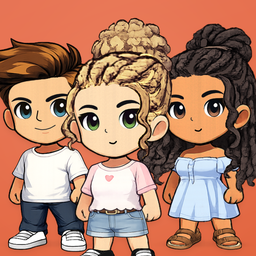
Loved Ones Support
Need a hand with Loved Ones? You're in the right place. This page covers how to reach us, what to expect after you write, and answers to the most common questions.
Contact us
The best way to reach us is by email:
Email: lovedonescontact@gmail.com
Developer: Randall Montes
You can also reach us from inside the app. Open the Your Avatar tab and tap the gear icon in the top right to open Settings. Under Support & Legal you'll find:
- Contact Support, which starts an email to us.
- Submit Feedback, for reporting a bug or suggesting an idea without leaving the app.
When you email us, it helps to include:
- Your Loved Ones username
- Your iPhone model and iOS version
- What you were doing when the problem happened, and a screenshot if you have one
Please don't forward the sign-in links we email you to anyone, including us.
What to expect
- General questions and bug reports: we read every message and reply as soon as we can.
- Reports about content or other users: we review every report under our zero-tolerance policy and act on objectionable content and abusive users.
- Privacy and data requests (a copy of your data, a correction, or deletion help): we respond to all legitimate requests within 30 days. We may ask you to verify your identity first. See the Privacy Policy for details.
Delete your account
You can delete your account at any time from inside the app:
- Open the Your Avatar tab.
- Tap the gear icon in the top right to open Settings.
- Scroll down and tap Delete Account.
- Tap Continue, then tap Delete Account again to confirm.
This permanently deletes your profile, avatar, friends, parties, marketplace items, uploaded photos and account login. It can't be undone.
If you only want to take a break, use Log Out in the same screen instead. Logging out keeps your account and your Loved Ones data.
Can't get into the app? Email us at lovedonescontact@gmail.com from the email address linked to your account, and we'll help you delete it. We may ask you to confirm that the account is yours first.
Report content or block someone
Loved Ones has a zero-tolerance policy for objectionable content and abusive conduct.
Report a person or their avatar
- Open their profile, for example by tapping them in your Friends list.
- Tap the ••• button in the top right.
- Choose Report Profile or Report Avatar.
- Pick a reason, add any details that would help, and tap Submit.
Report a marketplace item
- Open the item in the Marketplace to see its Item Details.
- Tap the report button (a speech bubble with an exclamation mark) in the top left.
- Pick a reason, add any details, and tap Submit.
Block someone
- Open their profile and tap the ••• button in the top right.
- Tap Block User, then confirm.
Blocked users are hidden from your search and friend discovery, and they can't send you friend requests. To undo a block, open Settings and go to Privacy → Blocked Users, then tap Unblock. Unblocking doesn't add them back as a friend.
If you think someone is in immediate danger, contact your local emergency services first.
Frequently asked questions
How do I sign in?
Loved Ones doesn't use passwords. Enter your email address and tap Send sign-in link. We'll email you a link. Open that email on the iPhone where Loved Ones is installed and tap the link to finish signing in.
I didn't get my sign-in email
- Check your spam or junk folder.
- Make sure the address is spelled correctly. Tap Change email to fix it.
- Wait a moment, then tap Resend link.
Still nothing? Email us at lovedonescontact@gmail.com.
How do I add the widget?
- Touch and hold an empty area of your Home Screen.
- Tap Edit, then Add Widget.
- Choose Loved Ones and a widget size.
- Tap Add Widget, then Done.
You can replay these steps any time in the app: Settings → Widget → Add the widget.
How do I choose which friends appear on my widget?
Open a party in the Parties tab and turn on Use for Widget. Only one party can be on your widget at a time. The widget shows up to 4 members: the first 4 in that party's order. Reorder the party's members to change who appears.
If your widget looks out of date, open Loved Ones while you're connected to the internet so it can refresh.
How do I change and save my avatar?
- On the Your Avatar tab, tap Customize to open the dressing room.
- Pick the items you want.
- Tap Save in the top right. Tap Discard instead if you change your mind.
To keep a whole outfit you can switch back to later, use Saved Looks on the Your Avatar tab and tap + to save your current look.
If you see "Your avatar was saved on this device, but it could not sync everywhere yet," your change is kept on this phone but hasn't finished syncing. Check your internet connection and save again.